Answering a research question often requires reading through several papers and figuring out how each of them might be useful. You need to track down what each paper says about your question, what methods the authors used to arrive at the relevant results, and what caveats to keep in mind to understand the boundaries.
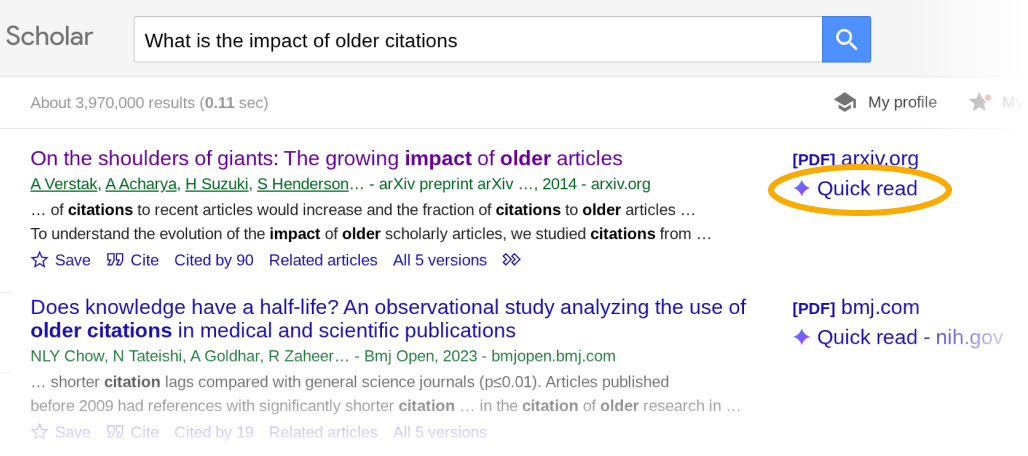
Today, we are introducing Scholar Quick Read, to help you answer your research queries faster. Search results in Scholar Labs and Scholar search that discuss your question in depth now include a “Quick read” link.
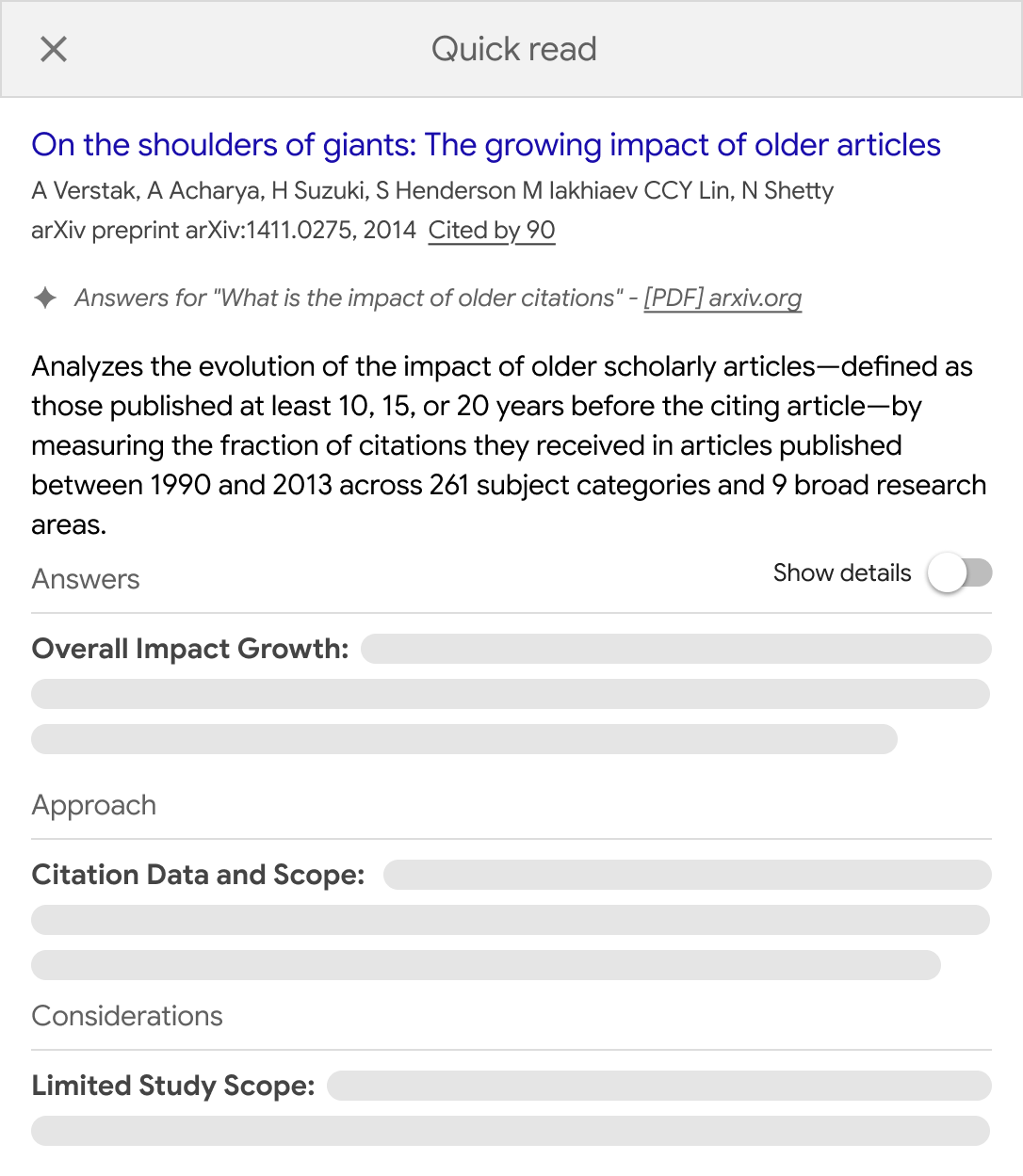
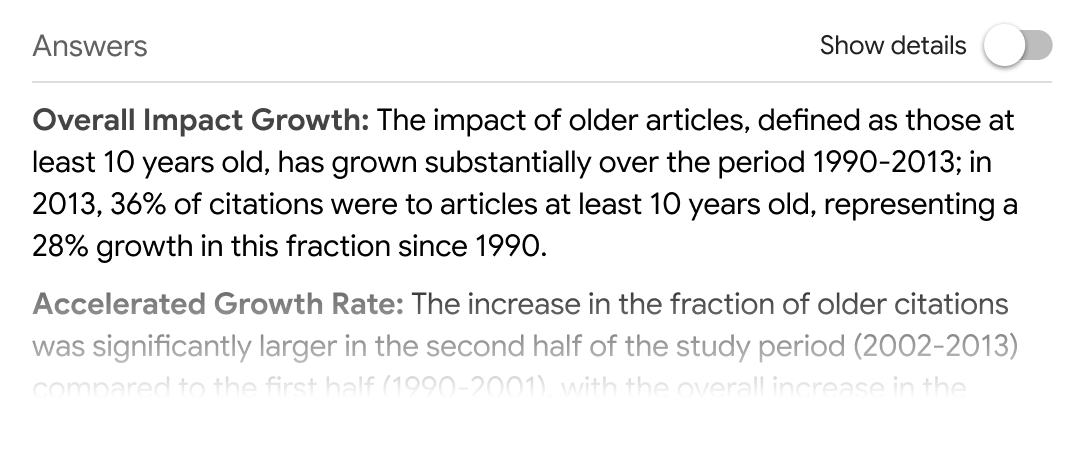
Click “Quick read” to read a short presentation of the paper focused specifically on your query. You’ll see an overview and three sections: Answers, Approach, and Considerations.
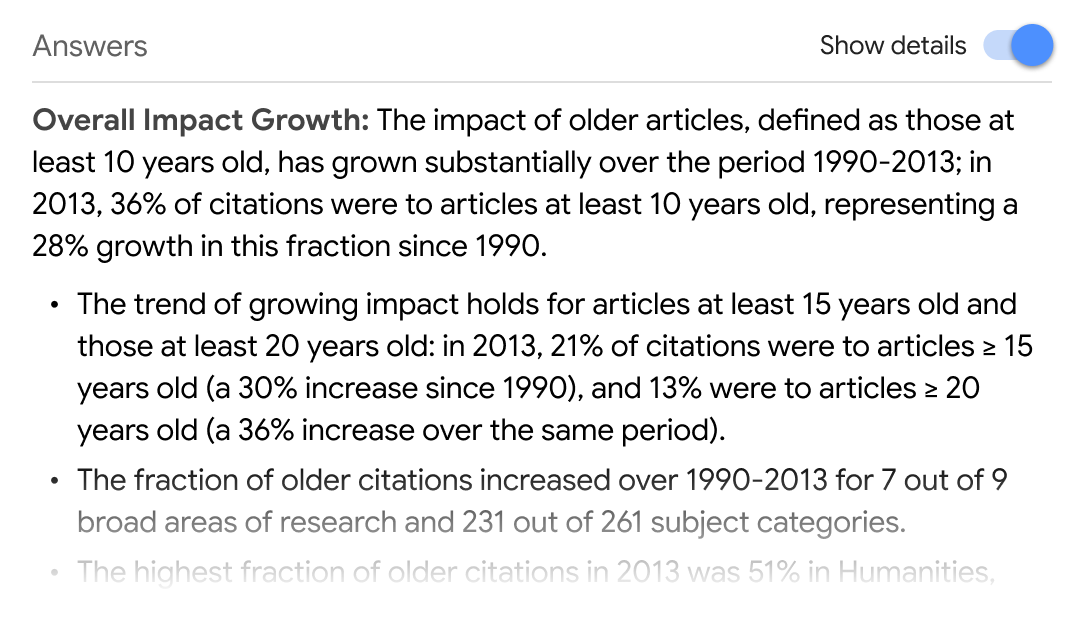
The Answers section presents an overview of what the paper says about your query as well as the supporting details for each of the points. Click “Show details” to view the details.
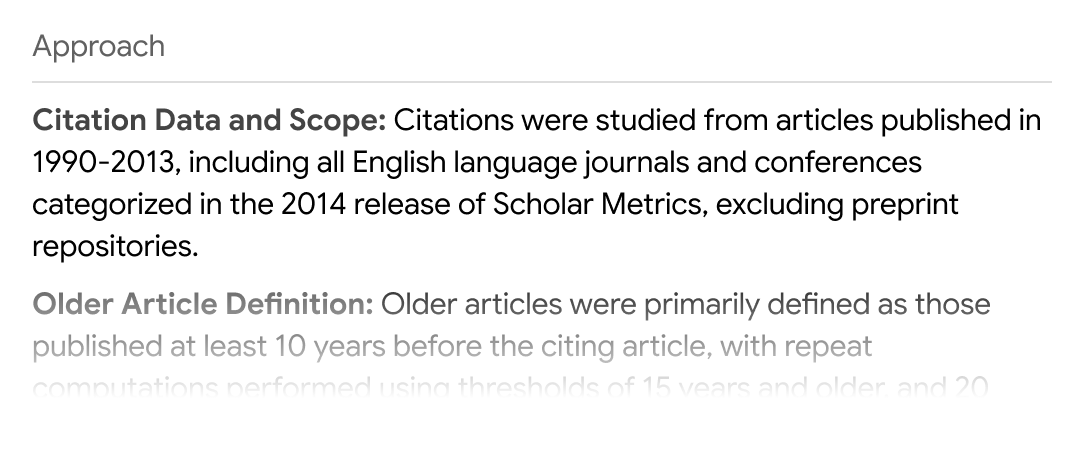
The Approach section describes the methods and techniques from the paper that are relevant to your question.
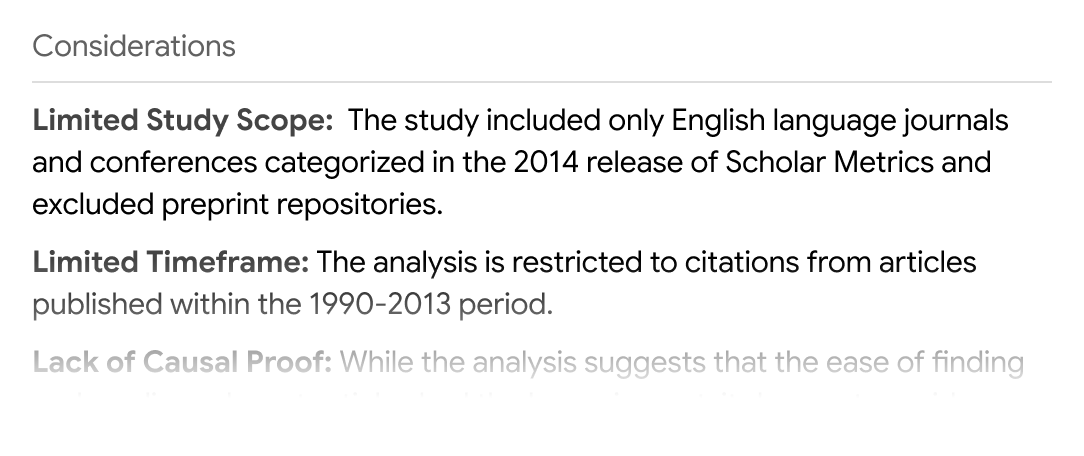
Finally, the Considerations section lists some caveats to keep in mind as you analyze the results.
Quick Read links appear only for papers that you have access to. We have worked with many of our scholarly publishing partners to enable them for your subscribed articles. We thank all our colleagues for joining us in this shared endeavor.
Quick Read is available for logged in users and is currently limited to English articles.
Here is hoping Quick Read helps find answers to your research questions in the ocean of knowledge.
Scholar Labs is a search mode that helps you answer detailed research questions. Today, we’re releasing an update that:
Whether you’re starting your research journey with a literature survey, mid-way through a project and looking up the details of a specific method, or making sure you haven’t missed an important citation before sending off your manuscript, Scholar Labs is designed to help you find the papers you need.
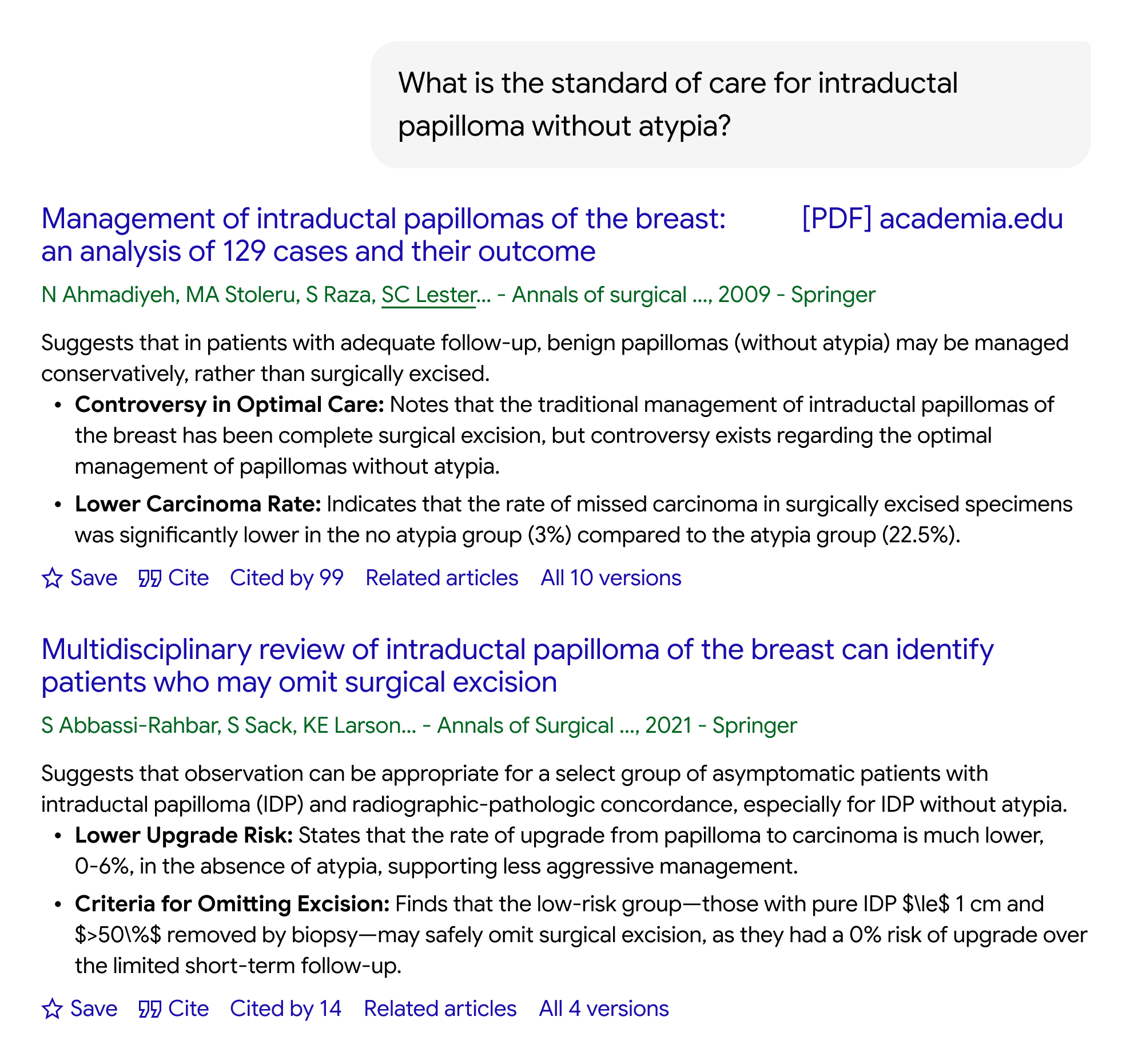
For every question, Labs identifies its key topics, aspects, and relationships. It then searches Scholar and scans the results to find papers that best answer your overall research question. For each paper, it provides a brief description of how the paper might be helpful. And it includes all the familiar Scholar features that you depend upon.
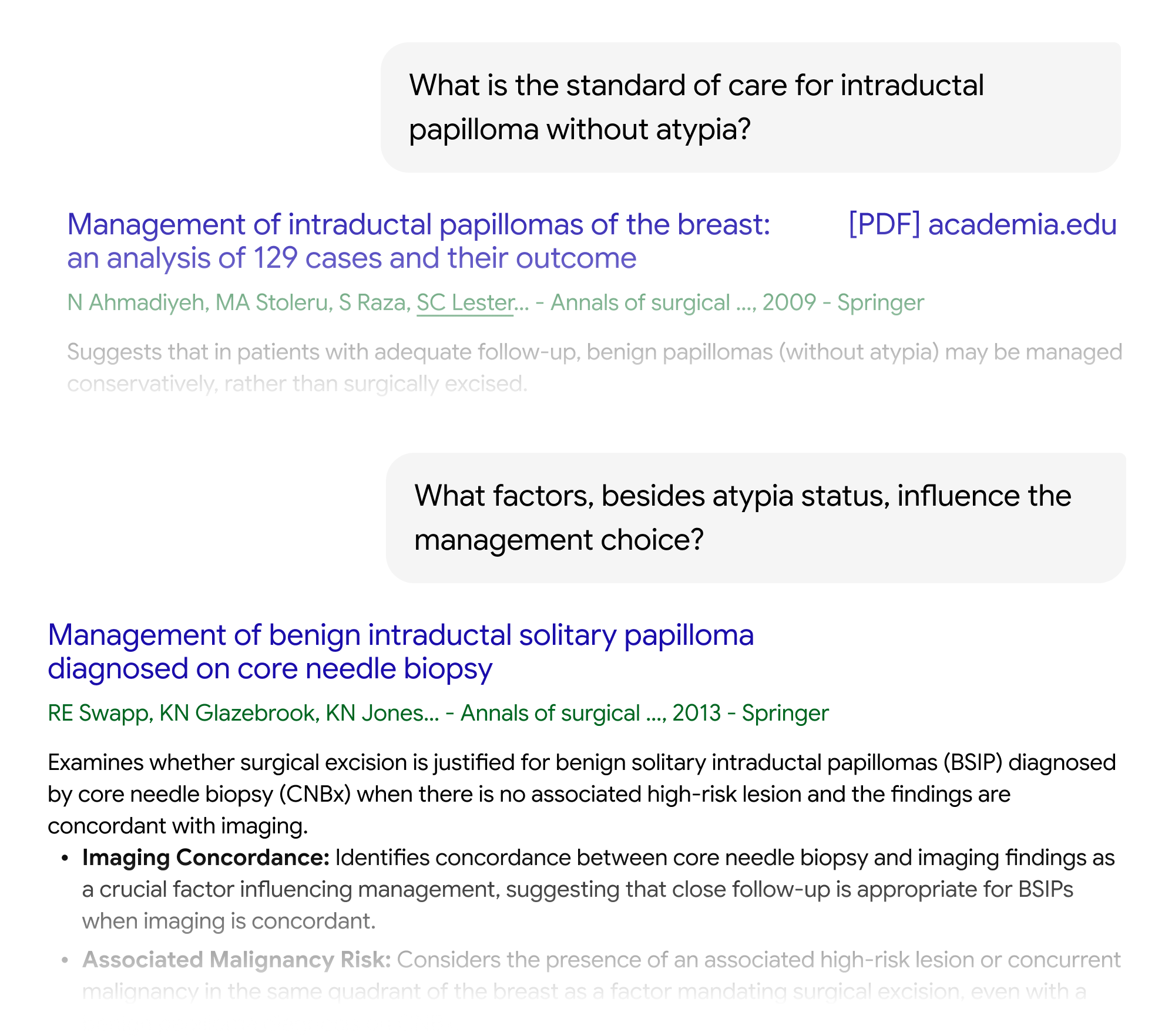
You can also ask follow up questions to dig deeper and explore specific nuances.
Scholar Labs is available for all logged in users and supports questions in all languages. The updated version of Labs is available in English starting today, and we hope to roll this out to all other languages shortly.
Happy searching!
Posted by: Sam Yuan, Namit Shetty, Alex Verstak, Anurag Acharya
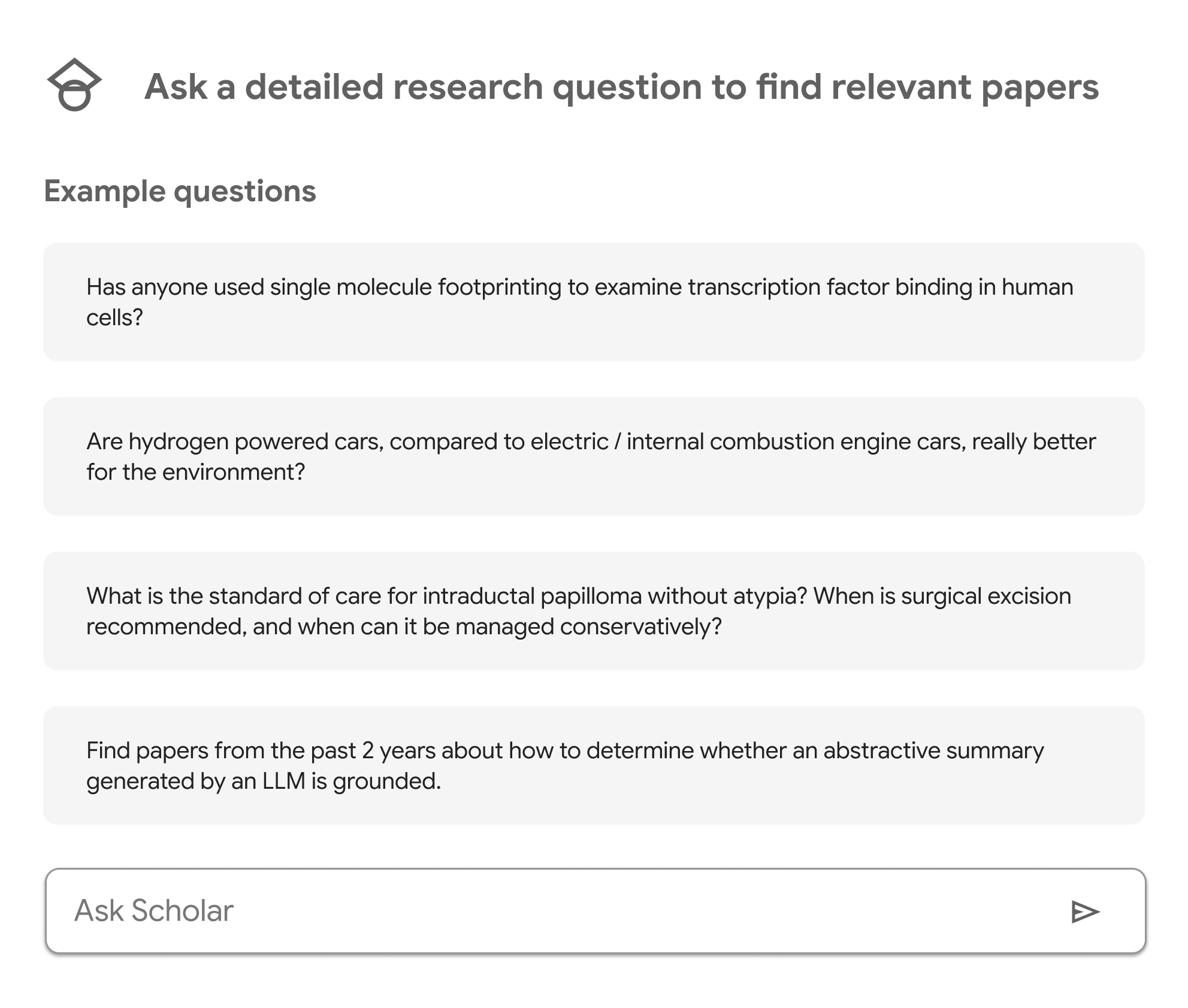
Research questions are often detailed. Answering them can require looking at a topic from multiple angles. Today, we are introducing Scholar Labs, an AI powered Scholar search that is designed to help you answer detailed research questions.
It analyzes your question to identify its key topics, aspects and relationships. It then searches for all of them on Scholar, and evaluates the results to identify papers that answer the overall research question. For each paper, it provides a brief description of how the paper helps answer your question. And includes all the familiar Scholar features that you depend upon.
You can ask follow up questions to dig deeper and explore specific nuances.
Scholar Labs is available for logged in users and currently supports questions in English. Click here to get started. You can view example research questions and ask your own.
Scholar Labs is an experimental feature and is as yet available to a limited number of users. This is a new direction for us and we plan to use the experience and feedback to improve the service. If Scholar Labs is not yet available for you, you can register to be notified when it is.
Posted by: Sam Yuan, Alex Verstak, Hanshen Wang, Akash Sethi, Namit Shetty, Anurag Acharya
Scholar PDF Reader helps you read through your ever growing pile of papers quickly and thoroughly. Starting today, it also lets you mark key passages or jot down thoughts and questions as you read.
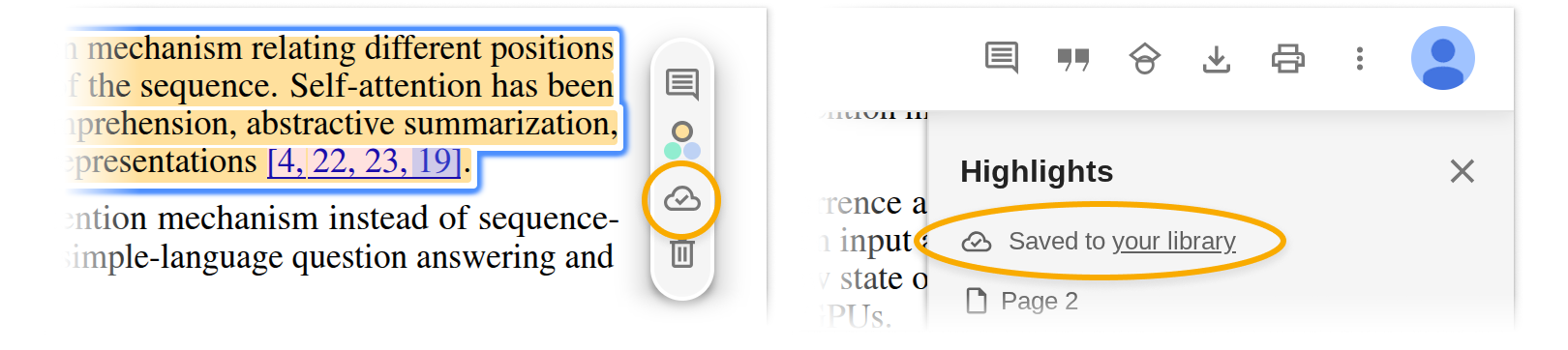
Select the text you want to emphasize, and a popup will appear, allowing you to choose a highlight color or add a comment.
Highlights and comments are saved automatically to your personal Google Scholar Library. The cloud icon confirms your notes are saved online. Access them from any device when logged into your Google account.
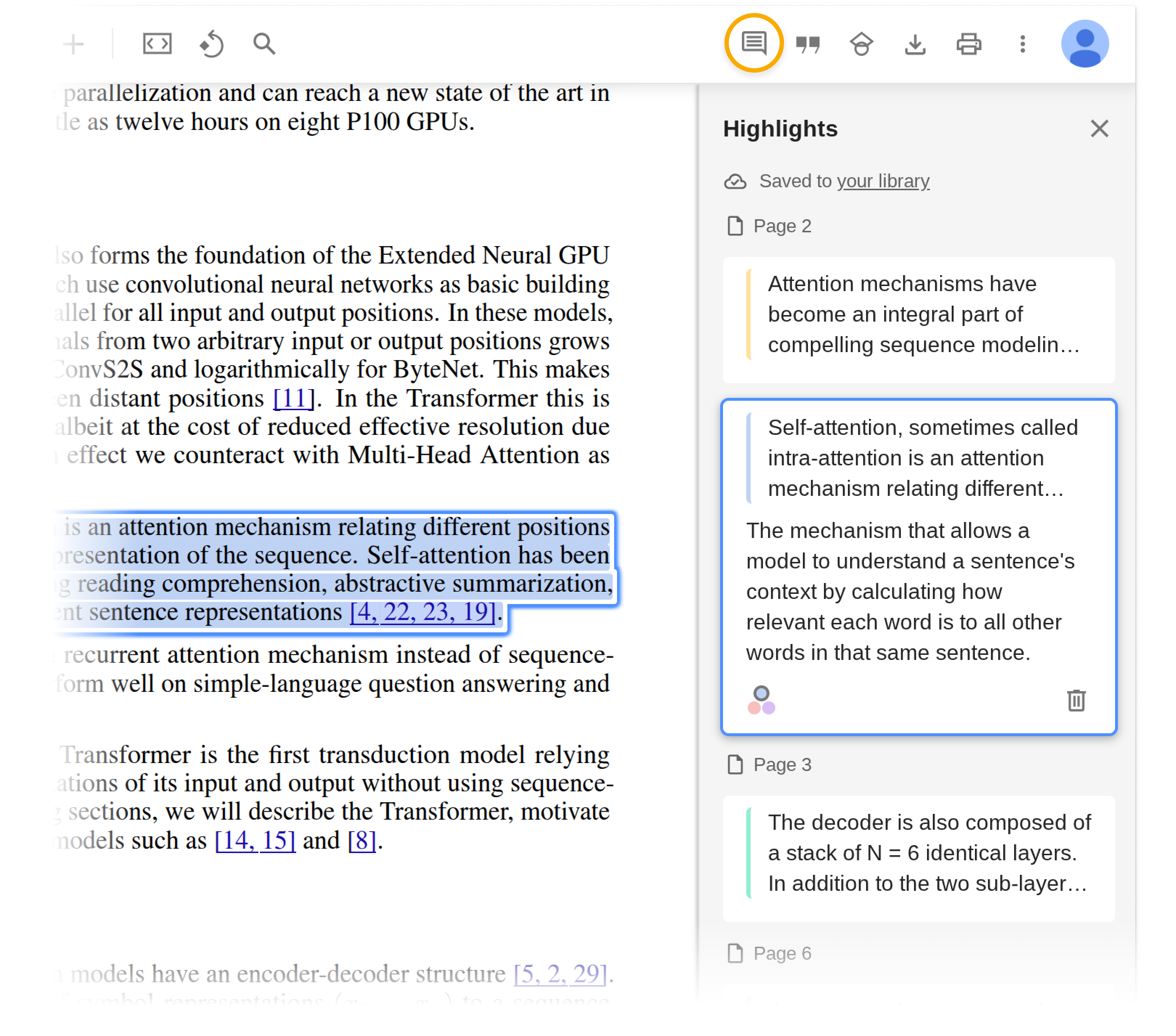
Click the highlight icon in the toolbar to view all your highlights and comments in the PDF.
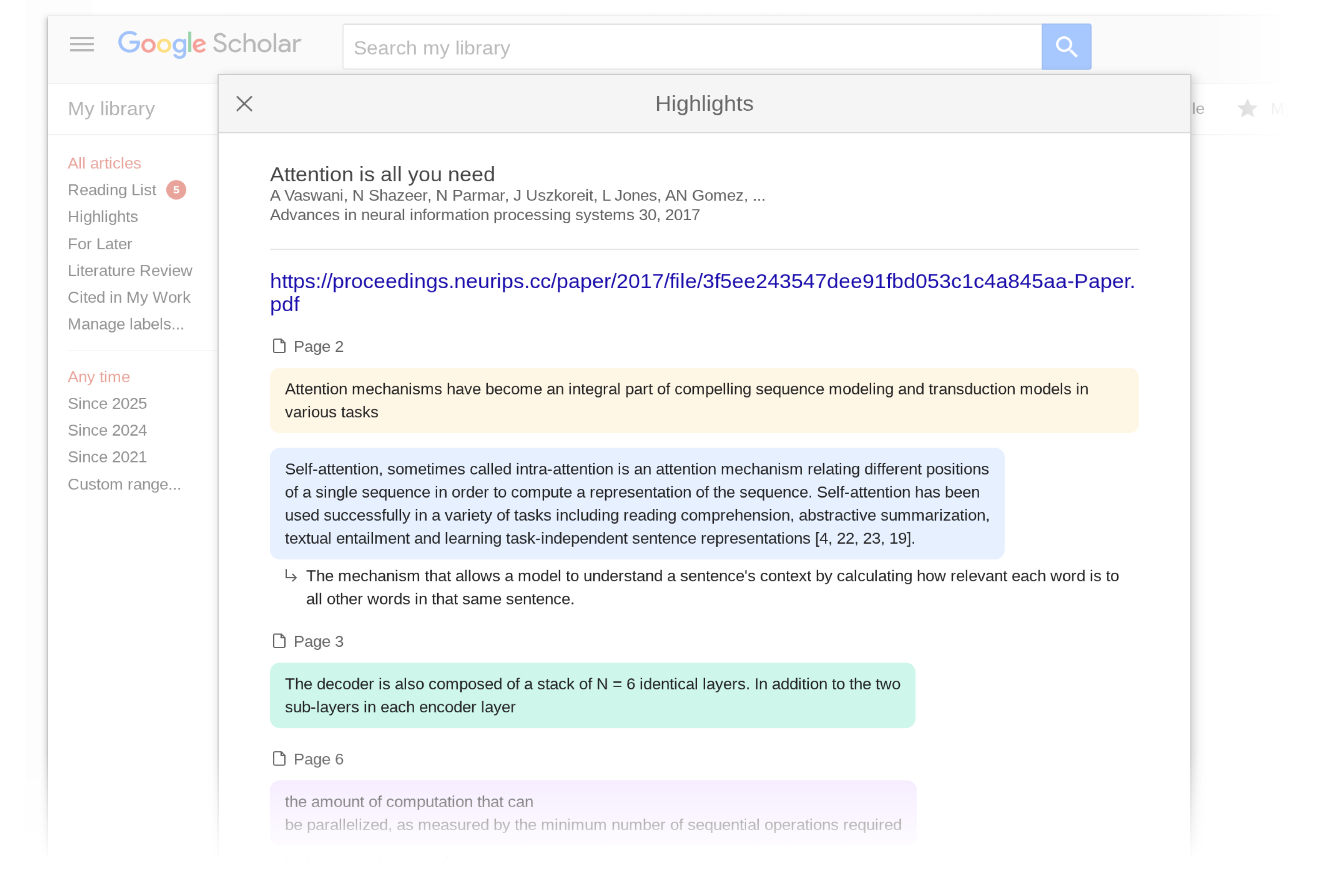
You can also view all your highlights and comments in your Scholar Library.
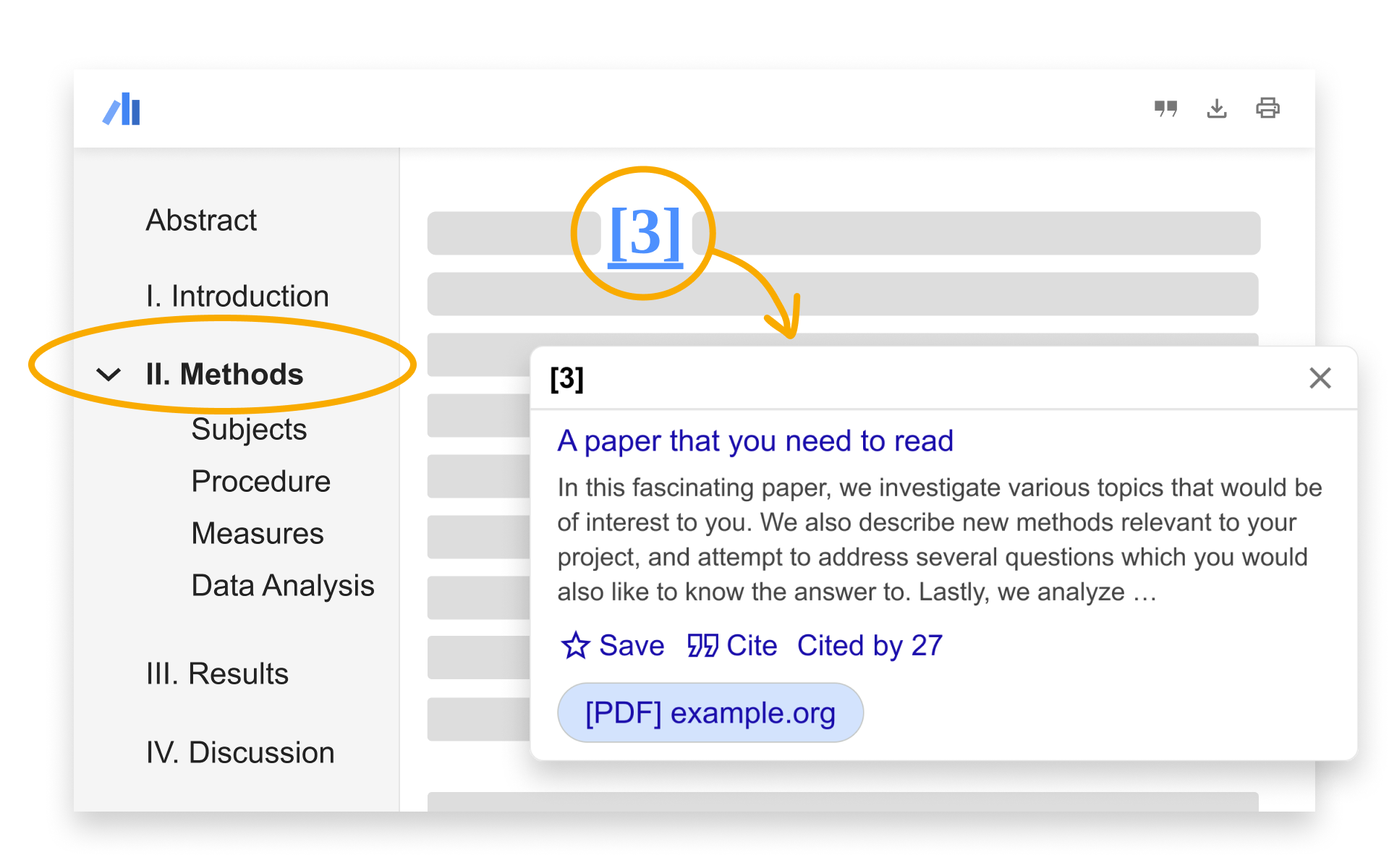
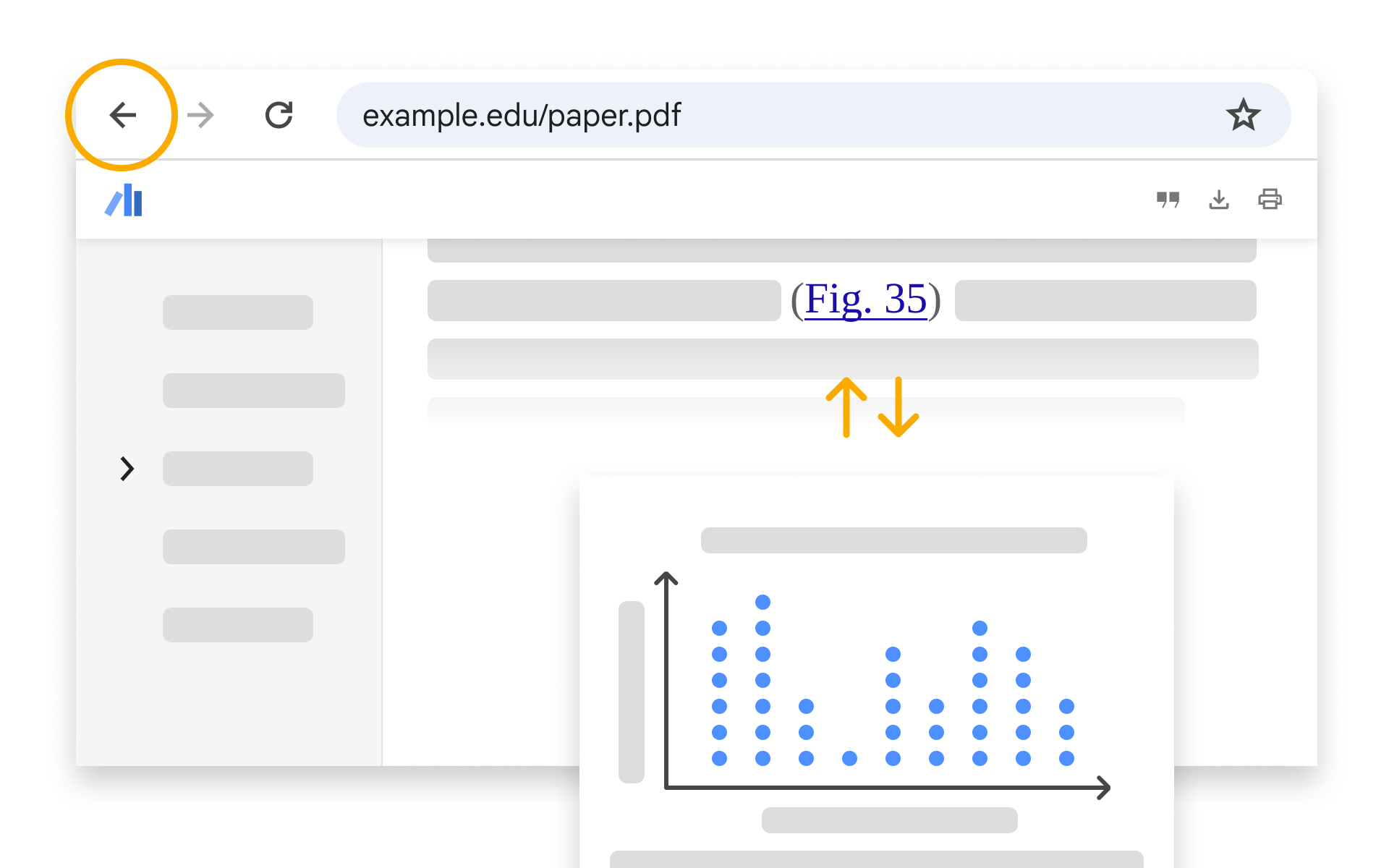
If you don’t yet have the Reader, you can install it from its Chrome web store page. In addition to highlights, Scholar PDF Reader has many other features to help with your paper reading – AI Outline for quick overview, one-click preview of cited articles, linked figure and table mentions, citing and related articles, and light/dark modes.
Happy reading!
Posted by: Danni Chen, Hanshen Wang, Alex Verstak
Found an interesting paper and don’t have time to read it right now? Today we are adding a reading list to your Scholar Library to help you save papers and read them later.
You can also use it to save papers you find off-campus but want to read on-campus where you have access to the full text, or papers you find on your smartphone but want to read on a larger screen.
To add a paper to your reading list, click “Save” and add the “Reading list” label. To use this feature, you need to be signed in to your Google account.
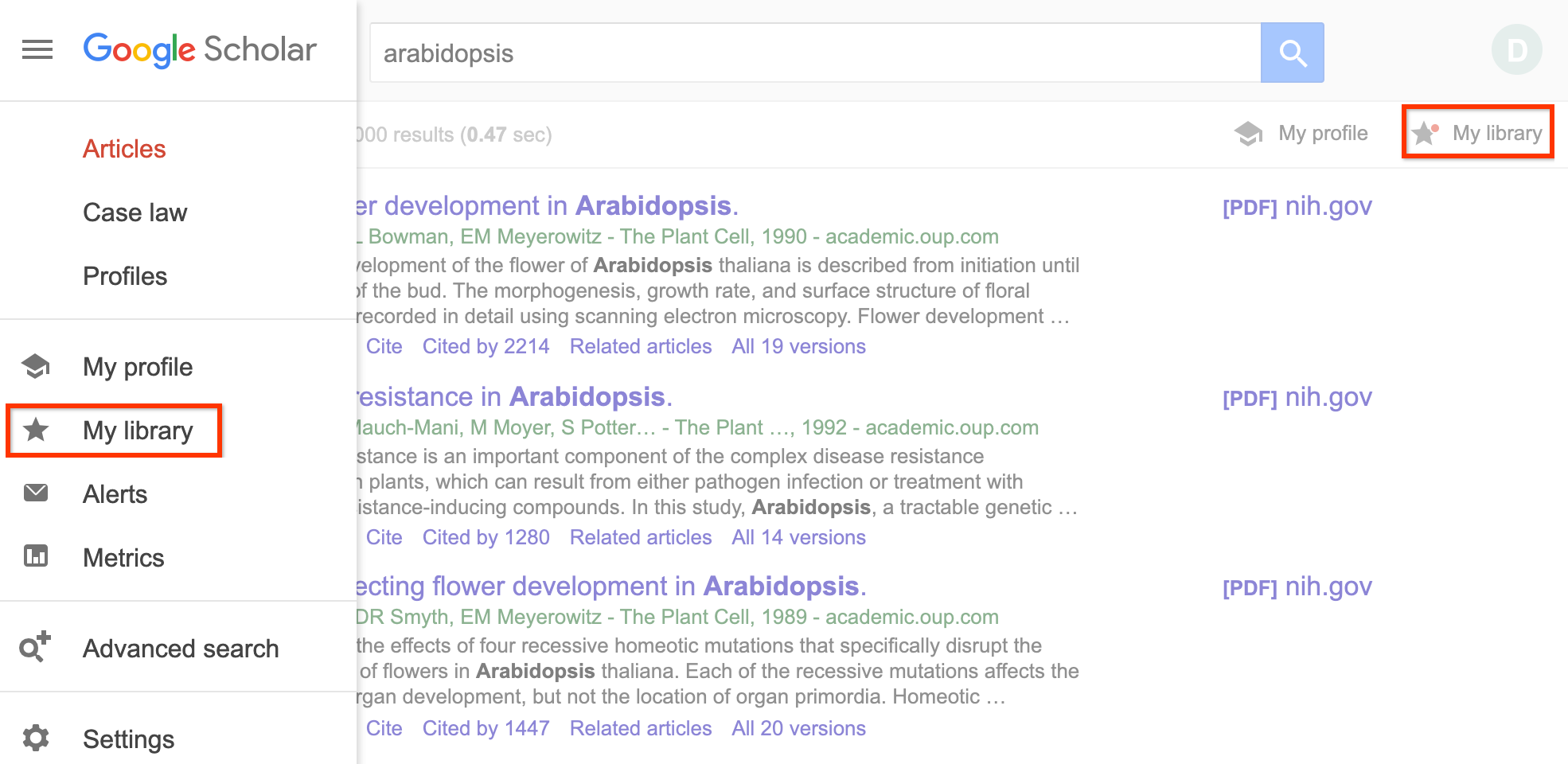
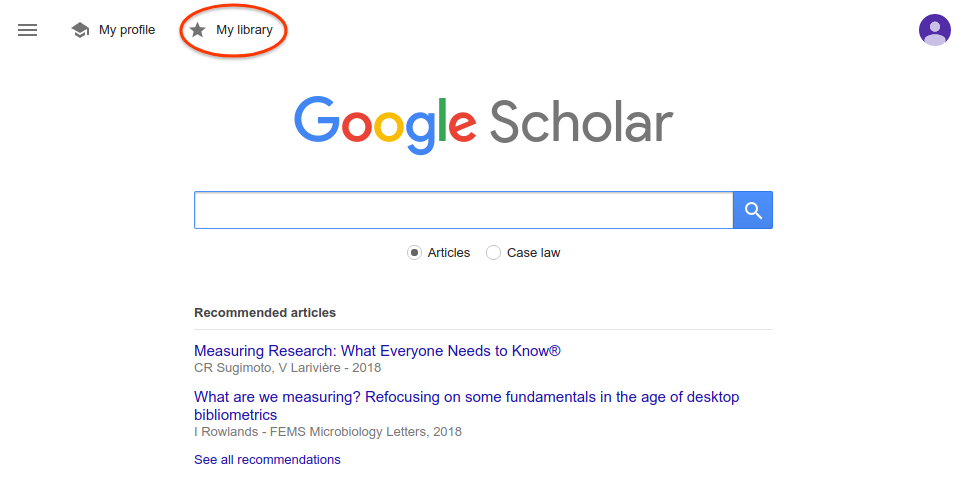
To get to your reading list, click “My library”:
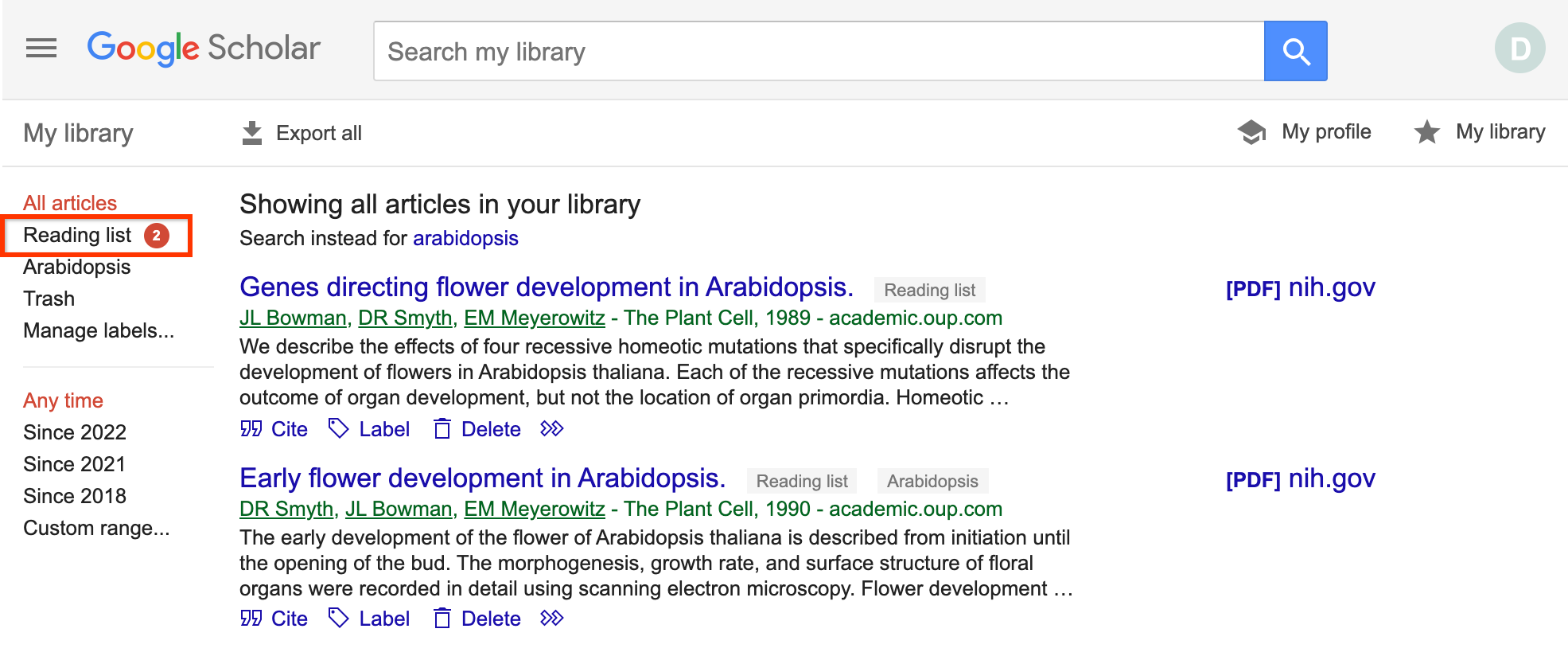
…and select “Reading list” in the sidebar.
To read the paper, click the [PDF] or [HTML] link next to its title.
After reading a paper, click "Archive" or "Delete" to remove it from your reading list. Archived papers are kept in your library for later reference; deleted papers are removed from your library.
Now you can gather papers as you go, block off a good chunk of time, and dig into the details.
Posted by: Danni Chen, Kyu Jin Hwang, and Alex Verstak
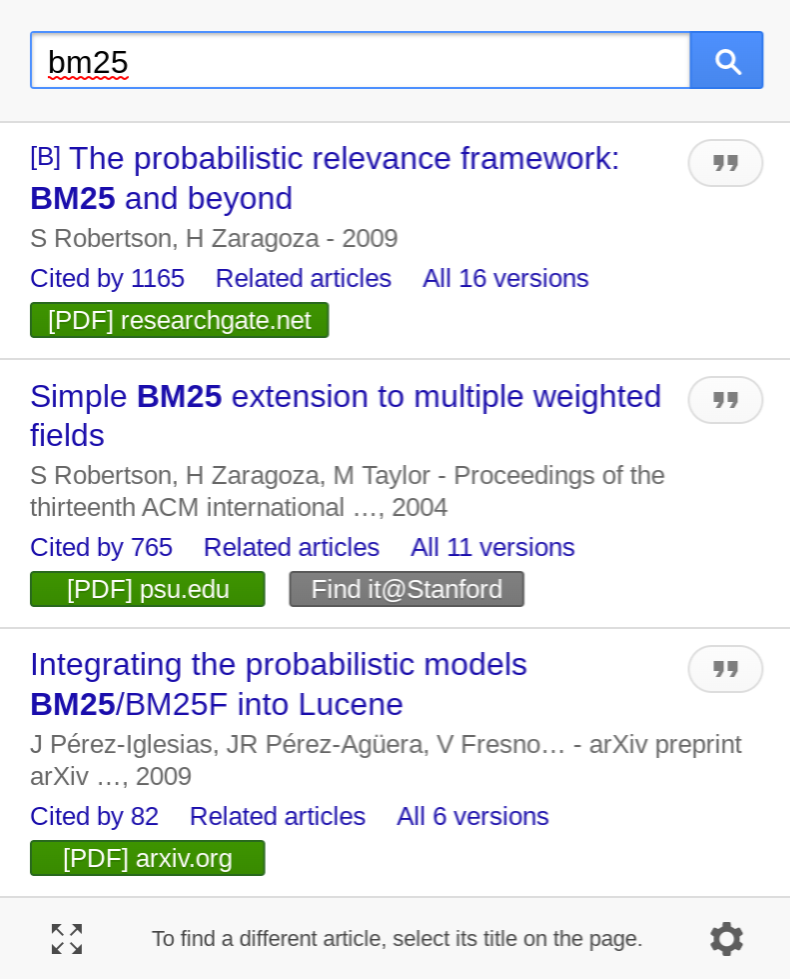
Scholar Button, released in 2015, provides easy access to Google Scholar from any webpage. You can use it to find fulltext on the web or in your university library, format references in widely used citation styles, repeat a web search in Scholar, or simply look up a reference to a paper.
We're releasing an update with several new features. The window that opens when you click Scholar Button used to look like this:
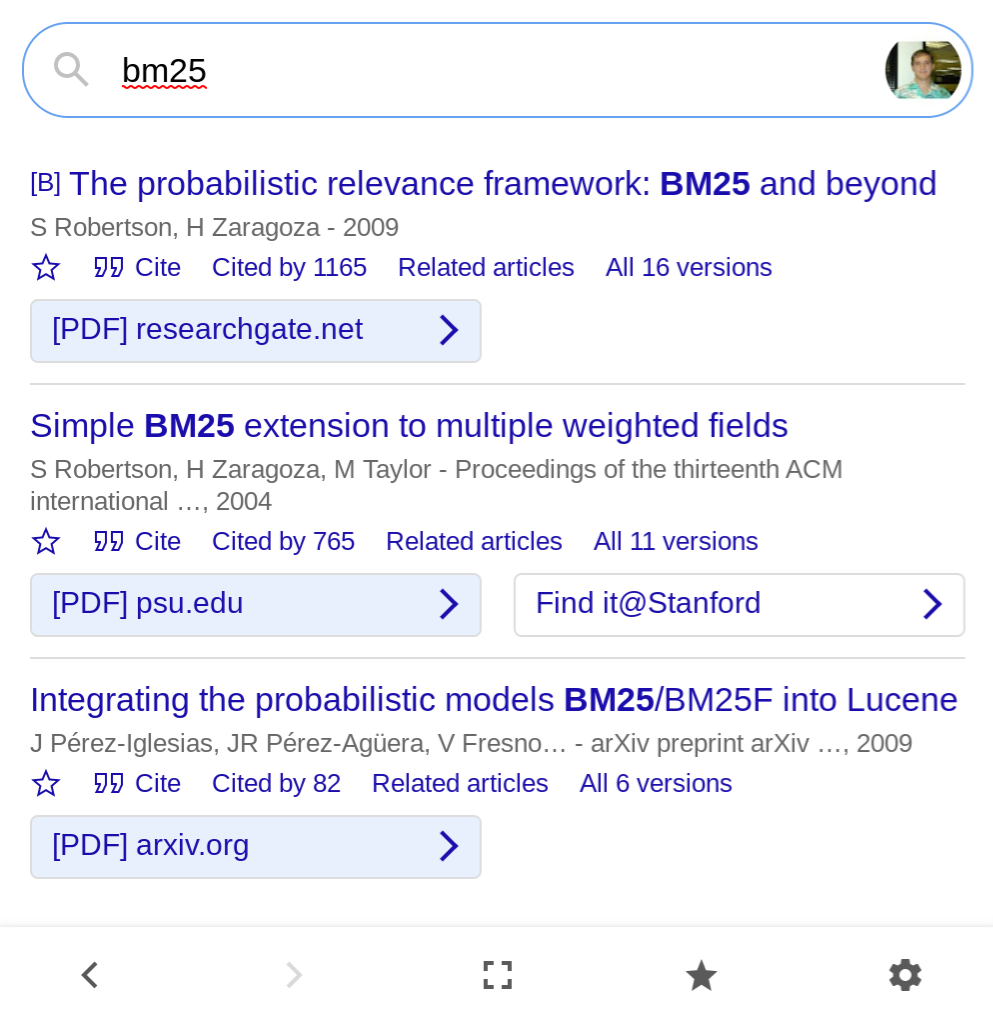
We added a "Save" star and moved the "Cite" button next to it, and added history navigation buttons to the bottom toolbar:
You can now save the article to read later - click the small blue star under the article to save it, or the big gray star at the bottom to see all saved articles in your Scholar library. The article is saved in your most recently accessed Scholar account; to use a different one, click the account photo in the upper right.
We've also added a back button! You can now easily undo query refinements that didn't work out, and even recover the window after you close it - just open it again and click back. Your Scholar Button history is stored locally in your browser for an hour; click the account photo in the upper right to clear it right away.
Finally, we have improved how Scholar Button identifies the webpage you're reading. Clicking the button while reading a PDF article should now find the article in Scholar, so you can cite it, save it, or explore related articles. If Scholar Button doesn't find the right article, please select its title on the webpage.
Scholar Button is currently available for Chrome and Firefox.
Posted by Belinda Shi, Kyu Jin Hwang, and Alex Verstak.
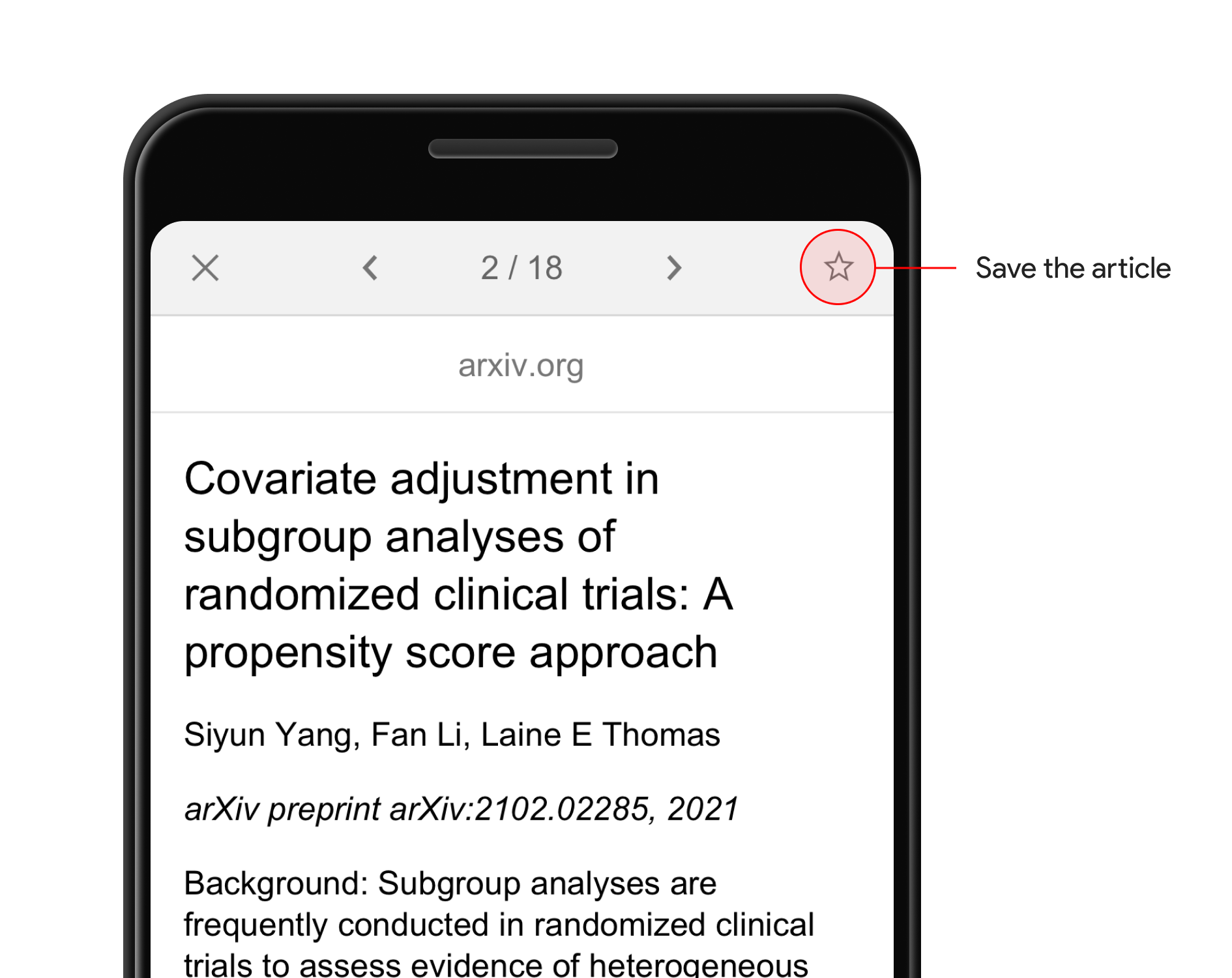
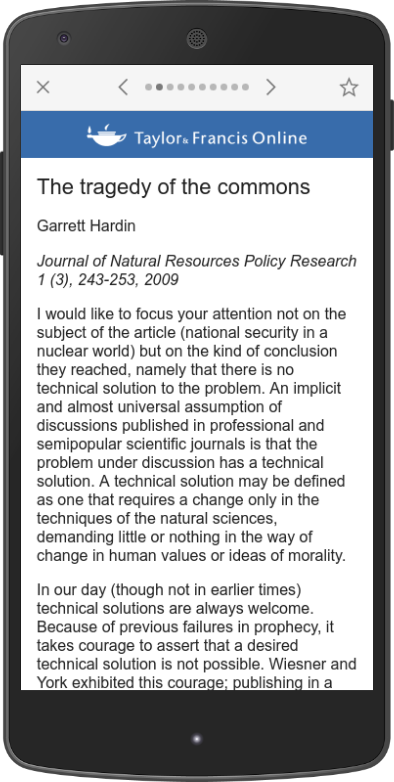
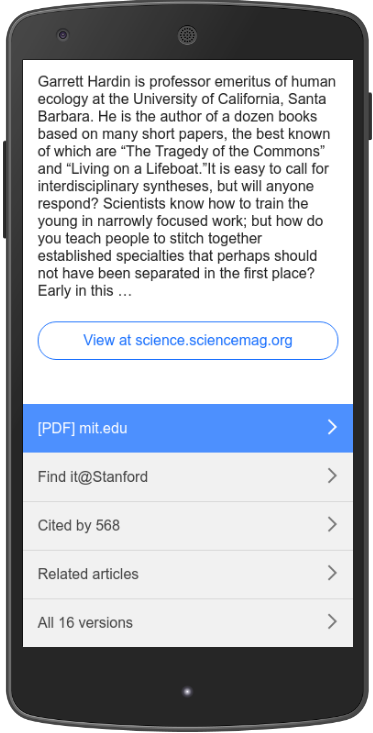
Today, we are making it easier to use your phone to find and scan scholarly articles. Clicking a Scholar search result on your phone now opens a quick preview:
You can swipe left and right to quickly flip through the list of results. Where available, you can read abstracts. Or explore related and citing articles, which appear at the bottom of the preview along with other familiar Scholar features.
When you find an interesting article, you can click through to read it immediately, or you can tap the star icon to save it for later in your Scholar library. You'll need to sign in to the same Google account on both the phone and the laptop to use this feature. This lets you find and save papers on your phone wherever you are. Once you get home, you can grab a cup of coffee and click "My library" on your laptop to get to your reading list.
Quick previews are available in Chrome, Safari, Samsung, and other standard browsers on recent Android and Apple phones. Sorry, they won't work in Opera Mini or other special-purpose browsers; and they are not, at this time, available on tablets.
We would like to thank our partners in scholarly publishing that have worked with us on this. Working together, we hope to help make research more efficient everywhere.
Posted by: Alex Verstak, Software Engineer